 Axle Docs
Form Styling
Customize the form overlay appearance — container, inputs, labels, and header.
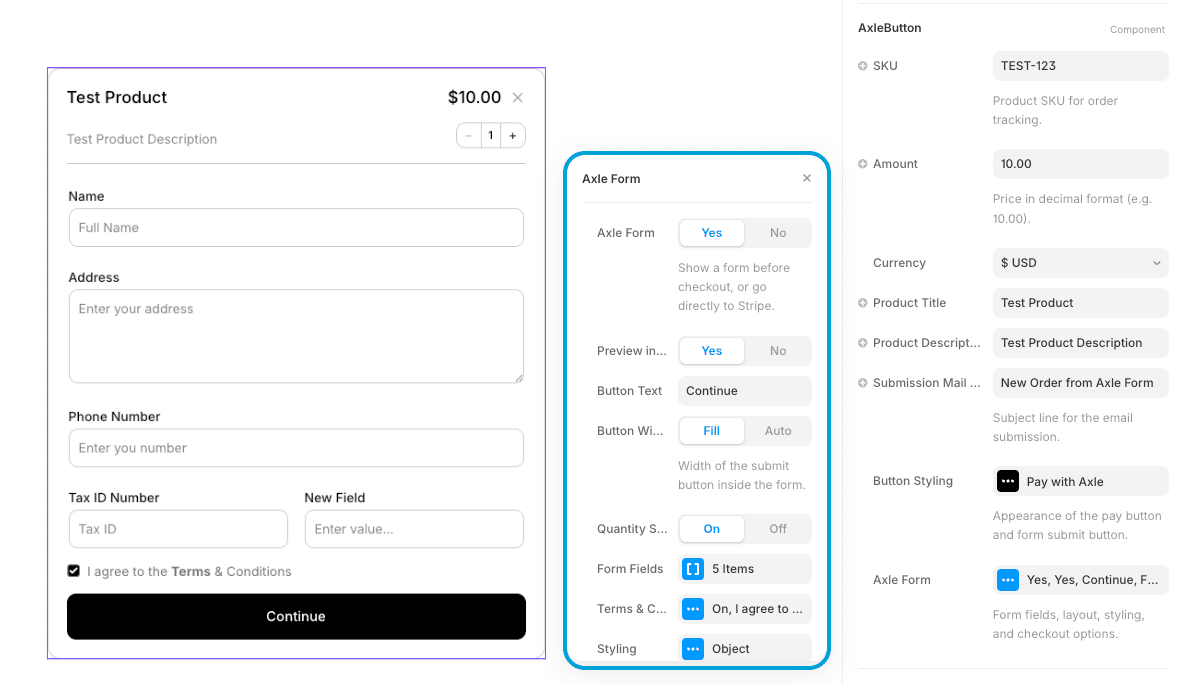
The Form Styling options let you customize every aspect of the form overlay's appearance. From container colors to input borders to header fonts, you have full design control.
Form Styling is only available when Axle Form is set to Yes. When Direct Checkout mode is active, form styling controls are hidden.
Sizing
Control the spacing and layout of form fields.
Horizontal Gap
The space between fields when they're arranged side-by-side (two-column layout).
Default: 16px
Range: 0-100px
- 8-12px: Tight layout
- 16-24px: Standard spacing (recommended)
- 32px+: Generous spacing for more air
Vertical Gap
The space between form fields arranged vertically.
Default: 12px
Range: 0-100px
- 8px: Compact form
- 12-16px: Standard spacing (recommended)
- 20-24px: Generous spacing for visual breathing room
Tip: Increase vertical gap for longer forms to avoid feeling cramped.
Footer Gap
The space between the last form field and the footer area (submit button, Stripe badge, cancel link).
Default: 12px
Range: 0-100px
- 8px: Tight, compact footer
- 12-16px: Standard spacing (recommended)
- 20px+: More separation between fields and action area
Container
The outer box containing the entire form overlay.
Background Color
The background color of the form container.
Default: #FFFFFF (white)
Common choices:
- White (
#FFFFFF) — Clean, neutral - Off-white (
#F9FAFB) — Slightly warmer - Light gray (
#F3F4F6) — Subtle differentiation - Match your page background for seamless integration
Padding
The space between the form content and the container edges.
Controls:
- Top, Right, Bottom, Left padding (each customizable)
Typical values: 24-32px (creates comfortable whitespace)
Border Radius
The roundness of container corners.
Range: 0-100px
- 0-4px: Sharp or slightly rounded
- 8-12px: Modern, rounded appearance
- 16px+: Very rounded, soft look
Border
Optional border around the form container.
Controls:
- Width (0-10px)
- Color (any hex color)
Examples:
- 1px solid #E5E7EB — subtle gray border
- 2px solid #000000 — bold dark frame
- 0 — no border
Shadow
Optional drop shadow behind the form.
Toggle: On/Off
- On — Adds depth with a subtle shadow
- Off — Flat appearance
Overlay Background
The color and opacity of the backdrop behind the form (the rest of the page dims).
Default: rgba(0, 0, 0, 0.5) — black at 50% opacity
Controls:
- Color (any hex color)
- Opacity (0-100%, where 0% is transparent, 100% is fully opaque)
Recommendations:
- 40-60% opacity: Good balance between focus and readability
- 70%+ opacity: Darker, stronger focus on form
- 20-30% opacity: Very light, subtle darkening
Label
The text labels above form fields.
Font
The typeface for field labels.
Controls:
- Font family
- Font weight
- Font style
- Font size
Recommendations:
- Use the same font family as your page
- Semi-bold or medium weight for clarity (labels should stand out from inputs)
- 13-14px font size (slightly smaller than input text for hierarchy)
Text Color
The color of label text.
Default: #09090B (very dark gray/black)
Common choices:
- Dark gray/black for strong contrast
- Medium gray for subtle appearance
- Match your page's body text color
Input Fields
Styling for the text input, email, number, phone, and textarea fields.
Font
The typeface inside input fields.
Recommendations:
- Use a readable font (sans-serif like Inter, Helvetica)
- Regular weight (not bold)
- 14-16px font size for comfort
Padding
Space inside the input field between text and edges.
Controls: Top, Right, Bottom, Left
Typical values:
- 10-12px horizontal (left/right)
- 8-10px vertical (top/bottom)
Increase padding for:
- Larger fonts
- Touch-friendly targets
- Spacious, premium feel
Border Radius
Roundness of input corners.
Range: 0-20px
- 0-2px: Sharp, minimal
- 4-6px: Slightly rounded (standard)
- 8px+: More rounded, softer
Background Color
Input field background color.
Default: #FFFFFF (white)
Typical choices:
- White for contrast against page
- Off-white/light gray for subtle differentiation
Text Color
Color of text typed into the input.
Default: #09090B (very dark gray/black)
Should contrast strongly with background for readability.
Placeholder Color
Color of placeholder text shown when field is empty.
Default: #A1A1AA (medium gray)
Recommendation: Lighter than actual text so it's visually distinct.
Border
The border around input fields.
Controls:
- Width (0-10px)
- Color (any hex color)
Common styles:
- 1px solid #E5E7EB — subtle gray
- 2px solid #D1D5DB — more visible gray
- 1px solid #000000 — dark/bold
Input — Focus State
How the input appears when the user is actively typing in it.
Background Color (Focus)
Input background when focused.
Default: #FFFFFF (usually same as default)
Options:
- Keep the same for minimal change
- Slightly highlight (light blue, light yellow) to show focus
Border (Focus)
Border appearance when focused.
Options:
- Change the border color (e.g., to blue) to show focus
- Increase border width for stronger focus indication
- Add a glow effect by changing to a bright color
Best practices:
- Make the focus state visually obvious for accessibility
- Use a color that matches your brand
Input — Error State
How the input appears when there's a validation error (required field not filled, invalid email, etc.).
Background Color (Error)
Input background when in error state.
Default: #FEF2F2 (light red/pink)
Alternatives:
- Keep white and rely on border color change
- Light red (
#FEF2F2) to signal error - Light yellow for warnings
Border (Error)
Border appearance when in error state.
Default: Red color
Recommendations:
- Bright red or orange for clear error indication
- Thicker border to make error obvious
Text Color (Error)
Error message text color.
Default: #DC2626 (red)
Should be bright and clearly indicate an error.
Stepper
When Quantity Selector is set to Stepper, these additional styling controls appear. They let you style the stepper independently from the input fields — useful when you want a different look for the quantity control.
Padding
Internal spacing inside the stepper control (the +/- buttons and quantity display).
Controls: Top, Right, Bottom, Left
Typical values: 8-12px for a comfortable touch target.
Border Radius
Roundness of the stepper control corners.
Range: 0-20px
- 0-2px: Sharp, minimal
- 4-6px: Slightly rounded (standard)
- 8px+: More rounded, softer
Stepper styling is separate from input field styling. This lets you give the quantity control a distinct appearance while keeping your form inputs styled differently.
Header
The top section of the form overlay with the close button and form title.
Header Styling
Controls for the header section including the close button and fonts.
Close Size (Default: 24px)
- Size of the close button (X) in the header
- Range: 12-48px
- Should be large enough to tap comfortably (24px+ recommended)
Header Font The font for the header area and UI elements.
Title Font The font for the form title/heading.
Recommendations:
- Title: Larger (18-24px), bold, prominent
- Header: Match body text or slightly larger
- Use fonts that match your page's typography
Description Font The font for any description text in the header.
Recommendations:
- Slightly smaller than title (14-16px)
- Regular weight
- Medium gray for subtle appearance
Complete Styling Example
Clean, Modern Form
Container:
  Background: #FFFFFF
  Padding: 32px
  Border Radius: 12px
  Border: 1px solid #E5E7EB
  Shadow: On
  Overlay: rgba(0,0,0,0.5)

Labels:
  Font: Inter, 14px, Medium
  Color: #09090B

Inputs:
  Font: Inter, 14px, Regular
  Padding: 12px
  Border Radius: 6px
  Background: #FFFFFF
  Text Color: #09090B
  Placeholder: #A1A1AA
  Border: 1px solid #D1D5DB

Focus:
  Background: #FFFFFF
  Border: 2px solid #3B82F6 (blue)

Error:
  Background: #FEF2F2
  Border: 2px solid #EF4444 (red)
  Text: #DC2626 (red)

Header:
  Title Font: Inter, 20px, Bold
  Description Font: Inter, 14px, Regular
Compact, Minimal Form
Container:
  Background: #F9FAFB
  Padding: 20px
  Border Radius: 4px
  Border: None
  Shadow: Off
  Overlay: rgba(0,0,0,0.3)

Labels:
  Font: System, 12px, Medium
  Color: #374151

Inputs:
  Font: System, 13px, Regular
  Padding: 8px 10px
  Border Radius: 2px
  Background: #FFFFFF
  Text Color: #1F2937
  Border: 1px solid #D1D5DB
Spacing & Layout
Field Arrangement
- Horizontal Gap — Space between side-by-side fields
- Vertical Gap — Space between stacked fields
Adjust these for your layout preferences:
- Compact: 8px gaps
- Standard: 12-16px gaps (recommended)
- Spacious: 20-24px gaps
Container Padding
The padding around the form creates the whitespace margin. Increase for luxury feel, decrease for compact layouts.
Accessibility Checklist
- Input border and text have sufficient contrast (WCAG AA: 4.5:1)
- Label text color contrasts with background
- Focus state is visually distinct (changed color or outline)
- Error state is obvious (red/colored border + text)
- Padding is sufficient for comfortable reading and interaction
- Font sizes are at least 12px (14px+ recommended)
- Close button is large enough to tap (24px+)
Mobile Responsiveness
- Container adapts to screen size
- Padding may reduce on very small screens (mobile)
- Two-column field layouts stack to single column on mobile
- Input padding should remain comfortable on touch devices
Best Practices
- Consistent with Page — Match your page's color scheme and typography
- High Contrast — Ensure labels and inputs contrast with their backgrounds
- Clear Focus — Make the focus state obvious for keyboard navigation
- Error Clarity — Red is intuitive for errors; use it consistently
- Adequate Padding — Don't make inputs feel cramped
- Readable Fonts — Use sizes and weights that are easy to read
- Subtle Shadows — Use shadows sparingly to add depth, not clutter
- Test on Mobile — Forms should work and look good on all screen sizes
Next Steps
- Form Fields — Configure field types and labels
- Form Mode — Learn about form mode
- Button Styling — Customize button appearance