 Axle Docs
Form Mode
Collect customer information before checkout with the Axle form overlay.
Form Mode adds a custom form overlay to AxleButton. When enabled, clicking the button opens an elegant overlay where customers can enter additional information before proceeding to Stripe checkout.
When to Use Form Mode
Form Mode is ideal when you need to:
- Collect customer details (name, email, phone, address)
- Gather product preferences or customization options
- Require customers to accept terms and conditions
- Adjust quantity or other variables
- Store custom metadata with the transaction
How It Works
1. Customer clicks button
   ↓
2. Form overlay slides in
   ↓
3. Customer fills in custom fields (up to 10)
   ↓
4. Customer adjusts quantity (optional)
   ↓
5. Customer checks terms (optional)
   ↓
6. Customer clicks submit button
   ↓
7. Stripe checkout opens
   ↓
8. Payment completed
Enabling Form Mode
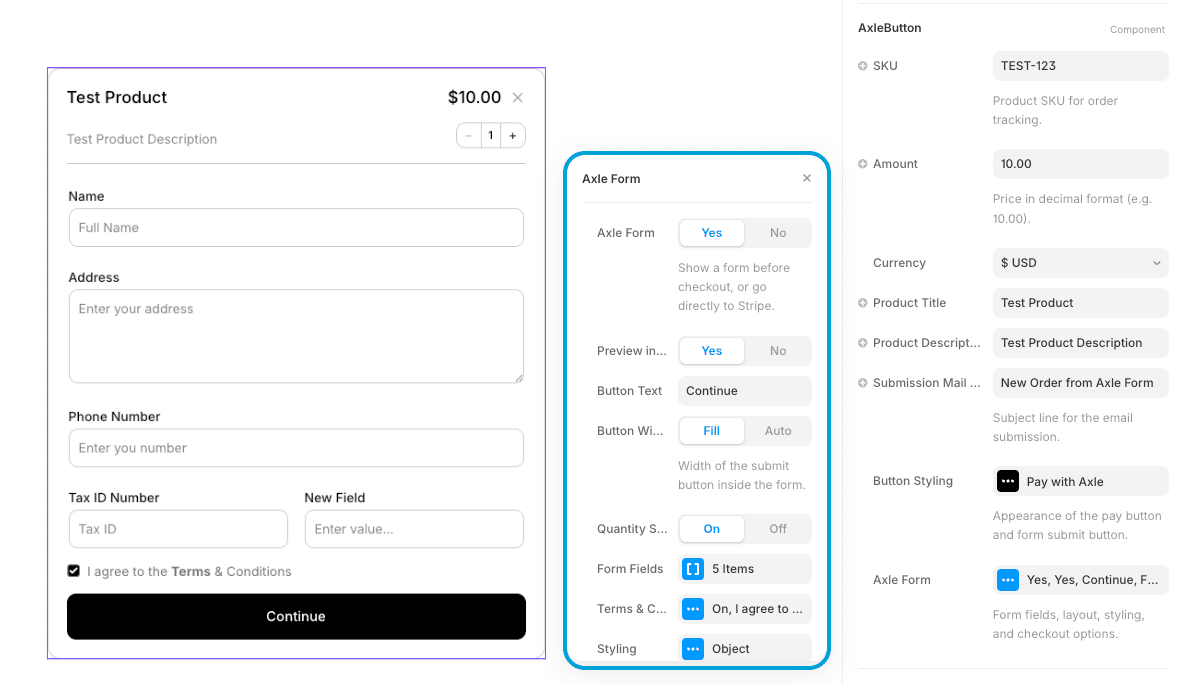
Form Mode is disabled by default (Direct Checkout is the default). To enable it in the AxleButton properties panel:
- Look for the Axle Form toggle in the "Axle Form" group
- Set it to Yes
When Form Mode is enabled, additional controls appear:
- Preview in Editor — Toggle to see/hide the form in the Framer canvas
- Button Text — Customize the form submission button text
- Button Width — Choose between "Fill" (full width) or "Auto" (content width)
- Quantity Selector — Choose between Off, Inline, or Stepper modes
- Max Quantity — Limit the maximum order quantity (default 99)
- Footer Badge — Show a "Secured by Stripe" badge and cancel link below the submit button
- Form Fields — Add up to 10 custom fields
- Terms & Conditions — Optional checkbox for terms acceptance
- Styling — Customize all form appearance aspects
Form Fields
Add up to 10 custom fields to collect the information you need. See Form Fields for detailed configuration options.
Common field examples:
- Customer Name (Text field)
- Email Address (Email field)
- Phone Number (Phone field)
- Shipping Address (Textarea)
- Product Color Choice (Text field)
There are NO built-in Name or Email fields. All fields are custom—add exactly what you need.
Quantity Selector
Set the Quantity Selector to Inline or Stepper to show a quantity picker in the form. The final payment amount is calculated as:
Final Amount = Amount × QuantityFor example, if Amount is $10.00 and the customer selects quantity 3, they'll pay $30.00.
See Quantity Selector for more details.
Terms & Conditions
Optionally require customers to accept terms before submitting the form. When enabled, a checkbox appears with customizable text and an optional link.
See Terms & Conditions for configuration details.
Form Data Storage
When a customer completes the form and checkout:
Stored with Transaction
All form data is associated with the transaction in Axle's system and accessible in your dashboard.
Stripe Metadata
Form data is also stored in the Stripe checkout session metadata for reference in your Stripe dashboard.
Email Notifications
The Submission Mail Title appears in payment confirmation emails. If you configure email notifications, the form data is included in the email sent to your customer.
Button Customization
Control how the form submission button appears:
- Button Text — Default is "Continue" (customize to "Next", "Proceed", "Checkout", etc.)
- Button Width — Choose "Fill" for full width or "Auto" for just enough space
Preview in Editor
Toggle Preview in Editor to see the form overlay in the Framer canvas while designing. This lets you verify spacing, styling, and layout before publishing.
Preview in Editor is hidden when Axle Form is disabled (Direct Checkout mode).
Best Practices
- Keep It Short — Limit to essential fields. Each field adds friction.
- Clear Labels — Use concise, descriptive labels so customers know what to enter.
- Mark Required Fields — The Required toggle indicates mandatory fields to customers.
- Use Right Field Types — Match the field type to the data (Email for emails, Phone for phone numbers, etc.).
- Logical Flow — Order fields in a way that feels natural to customers.
- Mobile-Friendly — Test on mobile devices. Two-column layout automatically adapts on smaller screens.
Styling
See Form Styling for comprehensive styling options including container appearance, input styling, label styling, and header fonts.
Next Steps
- Form Fields — Configure your custom fields
- Quantity Selector — Enable quantity selection
- Terms & Conditions — Add terms acceptance
- Form Styling — Customize form appearance