 Axle Docs
Component Overview
The AxleButton Framer component — two modes for accepting payments.
The AxleButton component brings Stripe payments into Framer with flexible, customizable payment flows. It supports two distinct modes for different use cases.
Two Modes
Form Mode (Recommended for Data Collection)
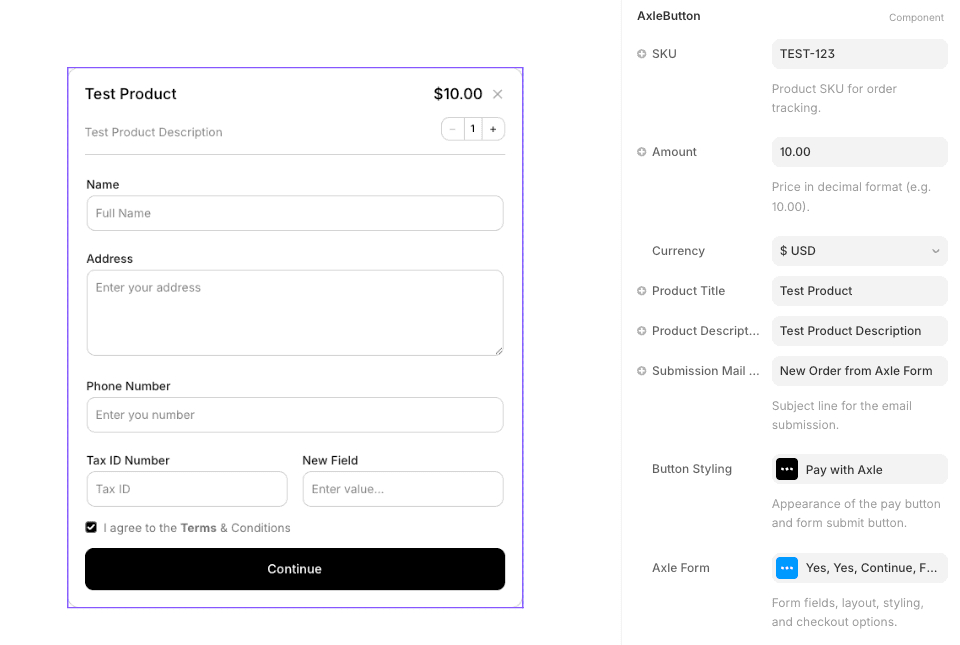
When Axle Form is enabled, clicking the button opens an overlay containing a customizable form. This form collects customer information before checkout—perfect when you need additional details beyond payment. The form includes a quantity selector (Inline or Stepper mode), custom fields, terms acceptance, and a "Secured by Stripe" footer badge for trust.
The flow:
- Customer clicks the button
- Form overlay appears with your custom fields
- Customer adjusts quantity (if enabled) and fills in fields
- Customer submits the form
- A Stripe checkout session is created with the form data
- Customer completes payment in Stripe
Learn more: Form Mode
Direct Checkout (Fastest Path to Payment)
When Axle Form is disabled, clicking the button immediately creates a Stripe checkout session and opens it. No intermediate form—perfect for simple products where you don't need to collect additional information.
Learn more: Direct Checkout
Core Properties
Every AxleButton requires these top-level properties:
| Property | Type | Default | Description |
|---|---|---|---|
| Amount | String (decimal) | 10.00 | The payment amount in the selected currency |
| Currency | Enum | $ USD | Currency for the payment: USD, EUR, GBP, JPY, or INR |
| Product Title | String | Payment Title | Name of the product or service being sold |
| Product Description | String | Enter your payment details below. | Description shown to the customer |
| SKU | String | Optional | Internal identifier for the product (not shown to customer) |
| Submission Mail Title | String | Defaults to Product Title | Custom title for payment confirmation emails |
API Key Setup
The Stripe API key is not a component property. It's set via your site's head snippet — see Add Head Snippet for setup instructions. This separation keeps your API key out of the component configuration and ensures it's set consistently across your site.
Next Steps
- Form Mode — Collect customer data before payment
- Direct Checkout — Skip the form for quick payments
- Form Fields — Configure custom fields
- Button Styling — Customize button appearance
- Property Reference — Complete property documentation