Framer Component
Property Reference
Complete reference of all AxleButton component properties.
This page documents every property available on the AxleButton component, organized by group.
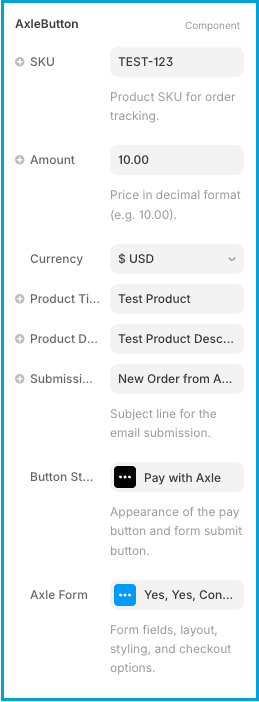
These properties define the core payment and product information.
| Property | Type | Default | Description |
|---|
| SKU | String | Optional | Internal product identifier. Stored with transaction but not shown to customers. Use for inventory/fulfillment tracking. |
| Amount | String (decimal) | "10.00" | Payment amount in the selected currency. Format: "10.00", "99.99", "5.50", etc. Multiplied by quantity if Quantity Selector is enabled. |
| Currency | Enum | "$ USD" | Payment currency. Options: "$ USD", "€ EUR", "£ GBP", "¥ JPY", "₹ INR". Displayed to customer in Stripe checkout. |
| Product Title | String | "Payment Title" | Name of the product/service. Shown in form overlay header and Stripe checkout. |
| Product Description | String | "Enter your payment details below." | Description shown in form overlay. Use to provide context or instructions to the customer. |
| Submission Mail Title | String | Optional (defaults to Product Title) | Custom title for payment confirmation emails. Overrides Product Title in email notifications. |
Properties that control the appearance of the payment button itself.
| Property | Type | Default | Description |
|---|
| Text | String | "Pay Now" | The label displayed on the button. Keep short and action-oriented. |
| Font | Extended | System Font | Complete font control including family, weight, style, and size. |
| Property | Type | Default | Description |
|---|
| Padding | Extended | Standard | Internal spacing between text and button edges. Supports top, right, bottom, left customization. |
| Border Radius | Number | 4px | Roundness of button corners. Range: 0-100px. |
| Property | Type | Default | Description |
|---|
| Background Color | Color | #18181B | Button background color. Should contrast with text color for readability. |
| Text Color | Color | #FFFFFF | Color of the button text/label. |
| Border | Extended | None | Optional border around the button. Includes width and color. |
| Property | Type | Default | Description |
|---|
| Hover Background Color | Color | #09090B | Background color when user hovers over button. Typically darker than default. |
| Hover Text Color | Color | #FFFFFF | Text color on hover. |
| Hover Border | Extended | None | Optional border styling on hover. |
| Property | Type | Default | Description |
|---|
| Spinner Size | Number | 16px | Diameter of the loading spinner circle. Range: 10-100px. Shown while processing payment. |
| Spinner Line Width | Number | 2px | Thickness of the spinner stroke. Range: 1-10px. |
| Spinner Color | Color | #FFFFFF | Color of the spinning indicator. Choose color that contrasts with button background. |
Properties that control the form overlay behavior and content. Only available when form mode is enabled.
| Property | Type | Default | Description |
|---|
| Axle Form | Segmented (Yes/No) | No | Enable/disable the form overlay. Yes = show form before checkout. No = direct checkout (default). |
| Property | Type | Default | Description |
|---|
| Preview in Editor | Toggle (Yes/No) | Default | Show/hide the form in the Framer canvas while designing. Helps visualize layout. |
| Property | Type | Default | Description |
|---|
| Button Text | String | "Continue" | Label for the form submission button. Examples: "Next", "Proceed", "Checkout", "Pay Now". |
| Button Width | Segmented | Fill | Button width: "Fill" (full width) or "Auto" (content width). |
| Property | Type | Default | Description |
|---|
| Quantity Selector | Segmented (Off/Inline/Stepper) | Off | Add a quantity picker to the form. Inline shows a compact number input. Stepper shows a +/- control with its own styling options. Multiplies final amount by selected quantity. |
| Max Quantity | Number | 99 | Maximum quantity a customer can select per order. Range: 1-999. Only visible when Quantity Selector is not Off. |
| Property | Type | Default | Description |
|---|
| Footer Badge | Segmented (On/Off) | On | Show a "Secured by Stripe" badge and cancel link below the submit button. Provides trust signaling and an easy way for customers to close the form. |
Add up to 10 custom fields to collect customer information.
| Property | Type | Default | Description |
|---|
| Type | Enum | Text | Field input type: Text, Email, Number, Phone, or Textarea. |
| Label | String | "New Field" | The label displayed above the field. Be clear and descriptive. |
| Placeholder | String | "Enter value..." | Placeholder text inside empty field. Guides what customer should enter. |
| Required | Boolean | true | Whether this field is mandatory. Required fields have an asterisk (*). |
| Layout | Enum | One Column | Field layout: "One Column" (full width) or "Two Column" (side-by-side on desktop). |
| Property | Type | Default | Description |
|---|
| Visible | Toggle (On/Off) | Off | Show/hide the terms and conditions checkbox. |
| Label Text | String | "I agree to the [Terms & Conditions]" | Checkbox label. Supports bracket syntax for links: [link text]. |
| Link URL | String | Optional | URL where the link points. Ignored if Link Enabled is Off. |
| Link Enabled | Toggle (On/Off) | Off | Whether the link in the label is clickable. |
| Property | Type | Default | Description |
|---|
| Horizontal Gap | Number | 16px | Space between fields in two-column layout. |
| Vertical Gap | Number | 12px | Space between fields in vertical stack. |
| Footer Gap | Number | 12px | Space between the last form field and the footer (submit button / badge area). |
| Property | Type | Default | Description |
|---|
| Container Background Color | Color | #FFFFFF | Background color of the form overlay container. |
| Container Padding | Extended | Standard | Internal spacing around form content. Top, right, bottom, left. |
| Container Border Radius | Number | 8px | Roundness of container corners. |
| Container Border | Extended | Optional | Border around the form container. Includes width and color. |
| Container Shadow | Toggle (On/Off) | On | Drop shadow behind the form for depth. |
| Overlay Background Color | Color | rgba(0,0,0,0.5) | Color and opacity of the backdrop (dimmed area behind form). |
| Property | Type | Default | Description |
|---|
| Label Font | Extended | System Font | Font styling for field labels. Includes family, weight, style, size. |
| Label Text Color | Color | #09090B | Color of label text. |
| Property | Type | Default | Description |
|---|
| Input Font | Extended | System Font | Font styling inside input fields. |
| Input Padding | Extended | Standard | Space inside inputs between text and edges. |
| Input Border Radius | Number | 4px | Roundness of input field corners. |
| Input Background Color | Color | #FFFFFF | Background color inside input fields. |
| Input Text Color | Color | #09090B | Color of text typed into inputs. |
| Input Placeholder Color | Color | #A1A1AA | Color of placeholder text. Typically lighter than actual text. |
| Input Border | Extended | Standard | Border around input fields. Includes width and color. |
| Property | Type | Default | Description |
|---|
| Input Focus Background Color | Color | #FFFFFF | Background color when input is focused/active. |
| Input Focus Border | Extended | Optional | Border styling when input is focused. Typically highlighted. |
| Property | Type | Default | Description |
|---|
| Input Error Background Color | Color | #FEF2F2 | Background color when field has a validation error. |
| Input Error Border | Extended | Red | Border styling for error state. Typically red. |
| Input Error Text Color | Color | #DC2626 | Color of error message text. |
These controls only appear when Quantity Selector is set to Stepper. They let you style the stepper independently from input fields.
| Property | Type | Default | Description |
|---|
| Stepper Padding | Extended | Standard | Internal spacing inside the stepper control. Supports top, right, bottom, left. |
| Stepper Border Radius | Number | 4px | Roundness of the stepper control corners. |
| Property | Type | Default | Description |
|---|
| Close Size | Number | 24px | Size of close button (X). Should be large enough to tap (24px+ recommended). Range: 12-48px. |
| Header Font | Extended | System Font | Font for header area and UI elements. |
| Title Font | Extended | System Font | Font for the form title/heading. |
| Description Font | Extended | System Font | Font for description text in header. |
Only required:
- Amount
- Currency
- Product Title
- Button Text
- Button colors
Recommended:
- All top-level properties
- Axle Form = Yes
- Add 2-5 Form Fields
- Button Text
- Basic container and input colors
Consider enabling:
- Quantity Selector
- Multiple Form Fields (up to 10)
- Terms & Conditions
- Comprehensive styling customization
- No API Key Property: The API key is set via your site's head snippet, not as a component property. See Add Head Snippet
- No Built-in Name/Email: All fields are custom. Add them via Form Fields array if needed
- No Size Variant: There is no small/medium/large button size. Use Button Padding for sizing
- No Full Width Property: Button width is controlled by Button Width property (Fill/Auto)
- No Success/Cancel URLs: Stripe handles post-purchase flow. Payment confirmation is via email
 Axle Docs