 Axle Docs
Button Styling
Customize the appearance of your payment button.
The Button Styling group gives you complete control over how your payment button looks and behaves. Customize text, colors, hover states, and the loading spinner.
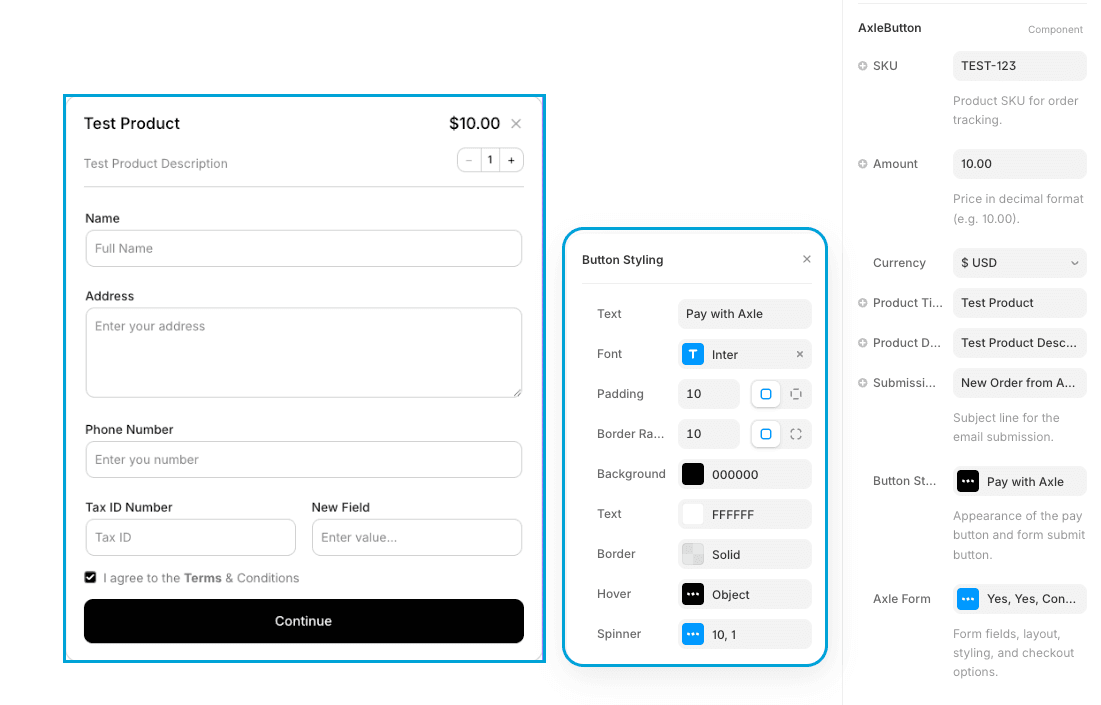
Text & Typography
Text
The label displayed on the button.
Default: "Pay Now" (or your custom text)
Tips:
- Keep it short and action-oriented
- Use active verbs: "Buy Now", "Purchase", "Checkout", "Get Started"
- Avoid passive language: avoid "Submit", "Continue" (those are better for form buttons)
Font
Choose the typeface for button text.
Includes:
- Font family selection
- Font weight (regular, medium, bold, etc.)
- Font style (normal, italic)
- Font size
Best practices:
- Use the same font family as your page for consistency
- Bold or medium weight works well for buttons (draws attention)
- Font size should be legible (14px minimum on mobile, 16px recommended)
Sizing & Spacing
Padding
The internal spacing between text and button edges.
Controls:
- Horizontal padding (left/right)
- Vertical padding (top/bottom)
Best practices:
- Increase padding to make the button feel more spacious and clickable
- Decrease padding for a compact look
- Typically: 12-16px vertical, 20-32px horizontal
Border Radius
The roundness of button corners.
Range: 0 (sharp corners) to 100px (fully rounded)
Recommendations:
- 0-2px: Sharp, modern look
- 4-8px: Slightly rounded (common default)
- 8-16px: Rounded, friendly appearance
- 20px+: Very rounded, pill-shaped
Colors
Background Color
The main button color.
Default: #18181B (dark gray/near-black)
Choose a color that:
- Contrasts with your text color (for readability)
- Matches your brand
- Stands out from the page background
Text Color
The color of the button text.
Default: #FFFFFF (white)
Contrast: Ensure strong contrast between text and background for accessibility:
- White text on dark background: ✓ Good
- Dark text on light background: ✓ Good
- Light text on light background: ✗ Poor
- Dark text on dark background: ✗ Poor
Border
Add an optional border around the button.
Controls:
- Border width (0-10px)
- Border color (any hex color)
- Border style (solid, dashed, dotted, etc.)
Common uses:
- Outline button style: transparent background + colored border
- Accent border: subtle border in a contrasting color
- No border: set width to 0
Hover State
The button appearance when the user hovers over it.
Hover Background Color
The background color on hover.
Default: #09090B (darker gray)
Recommendations:
- Make it noticeably darker than the default for clear feedback
- Or use a different color to indicate interaction
- Match your brand's interactive feedback style
Hover Text Color
The text color on hover.
Default: #FFFFFF (white)
Hover Border
Optional border styling when hovering.
Controls:
- Border width
- Border color
Tip: You can add a border on hover even if the default state has no border, creating a nice interactive effect.
Spinner
The loading indicator that appears while the payment is processing.
Spinner Size
The diameter of the spinner circle.
Range: 10-100px
Recommendations:
- 16-20px: Most common, scales well with button text
- 10-16px: Small, subtle
- 20-32px: Large, prominent
Line Width
The thickness of the spinner stroke.
Range: 1-10px
Recommendations:
- 2-3px: Standard, usually matches button style
- 1px: Very thin, delicate
- 4-5px: Thicker, bolder appearance
Spinner Color
The color of the spinning line.
Default: #FFFFFF (white)
Choose a color that:
- Contrasts with the button background while loading
- Indicates loading state clearly
- Typically white or a bright accent color
Complete Example Setup
"Buy Now" Button (Modern Dark)
Text: "Buy Now"
Font: Inter, 16px, Semi-bold
Padding: 14px vertical, 28px horizontal
Border Radius: 6px
Background: #18181B (dark gray)
Text Color: #FFFFFF (white)
Border: None
Hover BG: #09090B (darker)
Hover Text: #FFFFFF (white)
Spinner Size: 18px
Spinner Color: #FFFFFF (white)
"Purchase" Button (Branded Color)
Text: "Purchase"
Font: Your brand font, 16px, Bold
Padding: 12px vertical, 24px horizontal
Border Radius: 8px
Background: #3B82F6 (your brand blue)
Text Color: #FFFFFF (white)
Border: None
Hover BG: #1D4ED8 (darker blue)
Hover Text: #FFFFFF (white)
Spinner Size: 16px
Spinner Color: #FFFFFF (white)
"Get Started" Button (Outline Style)
Text: "Get Started"
Font: System font, 14px, Medium
Padding: 10px vertical, 20px horizontal
Border Radius: 4px
Background: Transparent
Text Color: #18181B (dark)
Border: 2px solid #18181B
Hover BG: #F3F4F6 (light gray)
Hover Text: #000000 (black)
Spinner Size: 14px
Spinner Color: #18181B (dark)
Accessibility Checklist
- Sufficient contrast between text and background (WCAG AA standard: 4.5:1 ratio)
- Button is large enough to click comfortably (minimum 44x44px recommended)
- Hover state is visually distinct from default state
- Spinner is visible and animated smoothly
- Text is clear and descriptive of the action
- Font size is at least 14-16px
- Works on mobile screens
Mobile Considerations
- Buttons appear at full width on small screens
- Ensure padding works well at smaller sizes (don't make button too tall)
- Text should remain readable on mobile (don't use too-small fonts)
- Test your button on actual mobile devices or use Framer's responsive preview
Best Practices
- Match Your Brand — Use brand colors and fonts for consistency
- Clear Call-to-Action — Button text should clearly indicate what happens
- High Contrast — Ensure text color contrasts strongly with background
- Obvious Hover State — Users should see immediate feedback on hover
- Appropriate Sizing — Balance aesthetics with usability
- Consistent Styling — Keep button styling consistent across your site
- Loading Feedback — Spinner color should be visible against button background
Testing
After customizing your button:
- Preview in Framer — See how it looks in your canvas
- Test on Mobile — Use Framer's responsive preview
- Check Contrast — Use an online contrast checker tool
- Try Hover — Verify the hover state displays correctly
- Test Loading — Trigger a test payment to see the spinner in action
Next Steps
- Form Styling — Customize the form overlay appearance
- Direct Checkout — Simpler button-only mode
- Testing — Test your payment flow